
The EDocGen Salesforce Managed Package simplifies document automation by eliminating custom multipart HTTP requests, polling mechanisms, and complex OAuth authentication flows[cite: 4].
Key Architecture Features:
PDF, DOCX, and PPTX documents from unified templates[cite: 4].ContentVersion / Files and attached directly to target record IDs[cite: 4].edocgen) into your Sandbox or Production org[cite: 4].
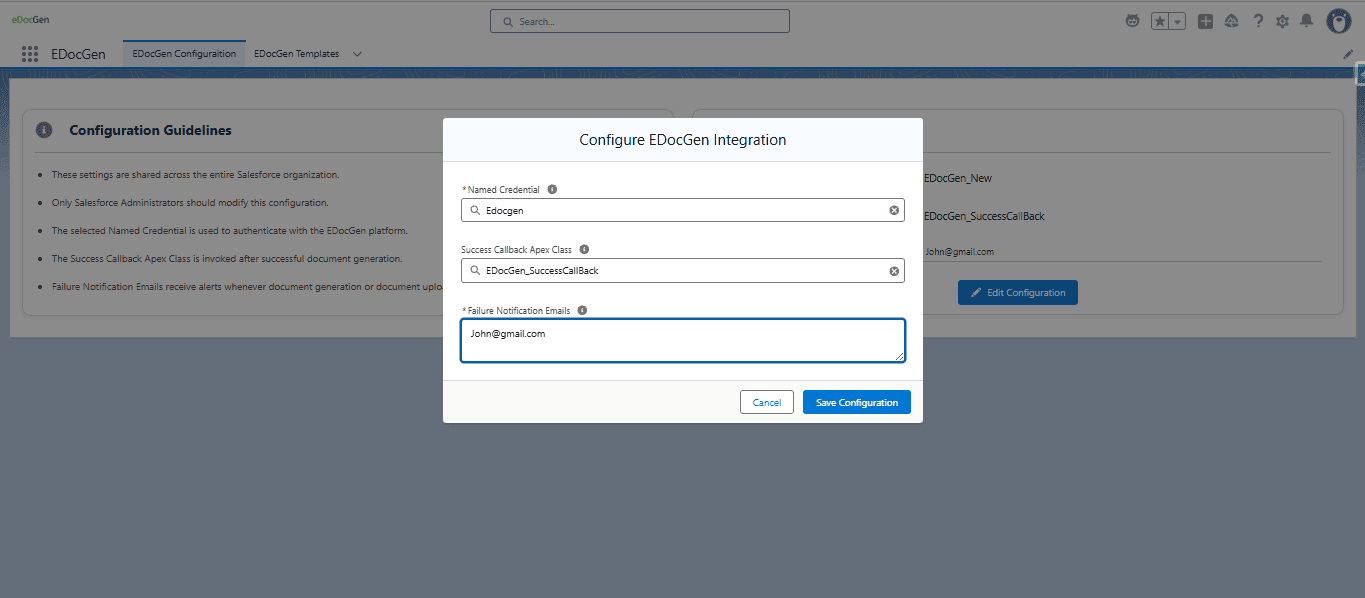
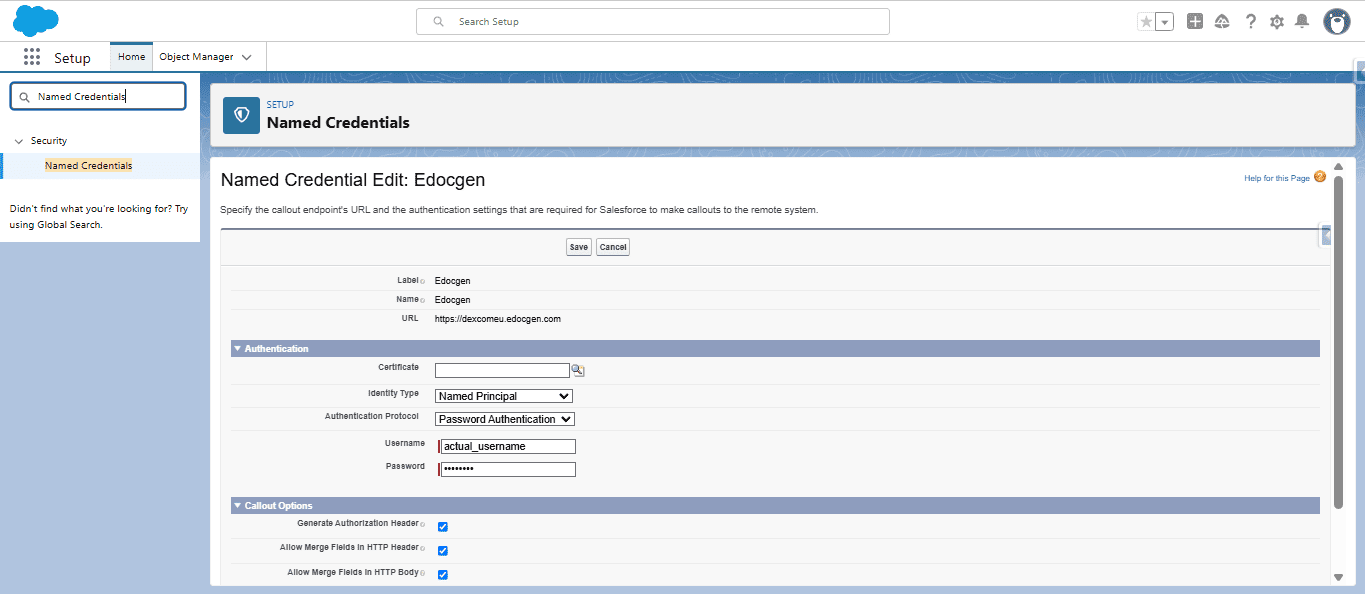
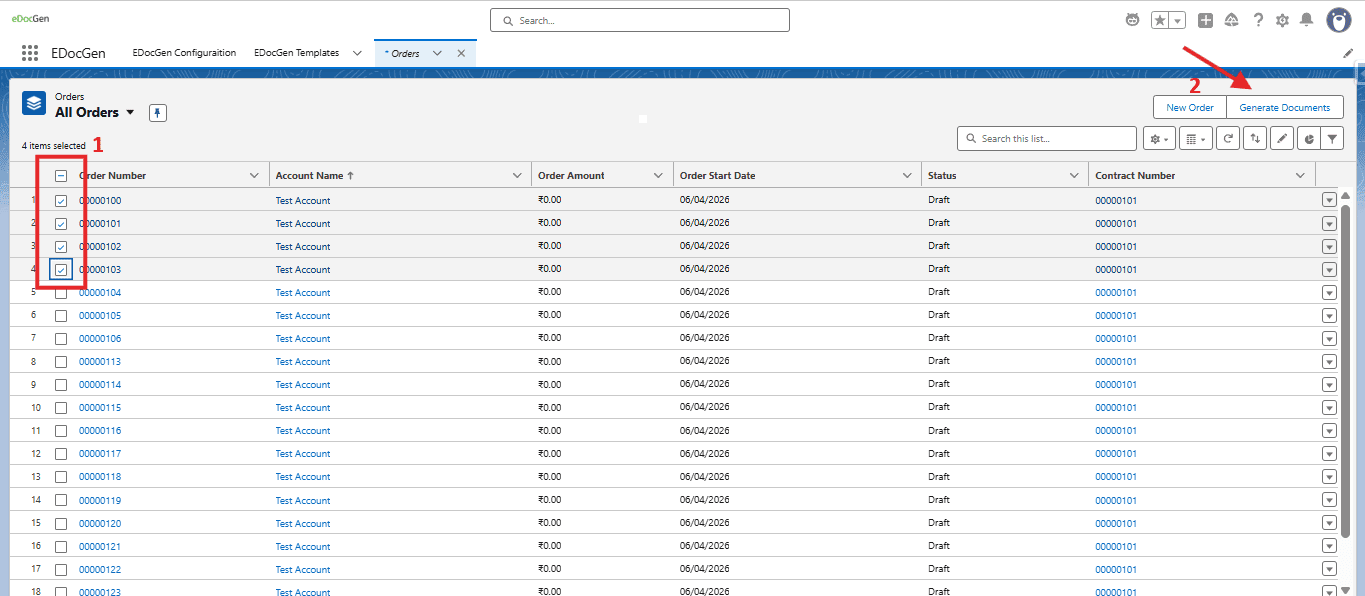
EDocGen supports single-record generation actions, list view bulk processing, and Apex-driven automation[cite: 4].
Bind the edocgen:Templates Lightning Component to a custom Action button on any standard or custom object page layout[cite: 4].
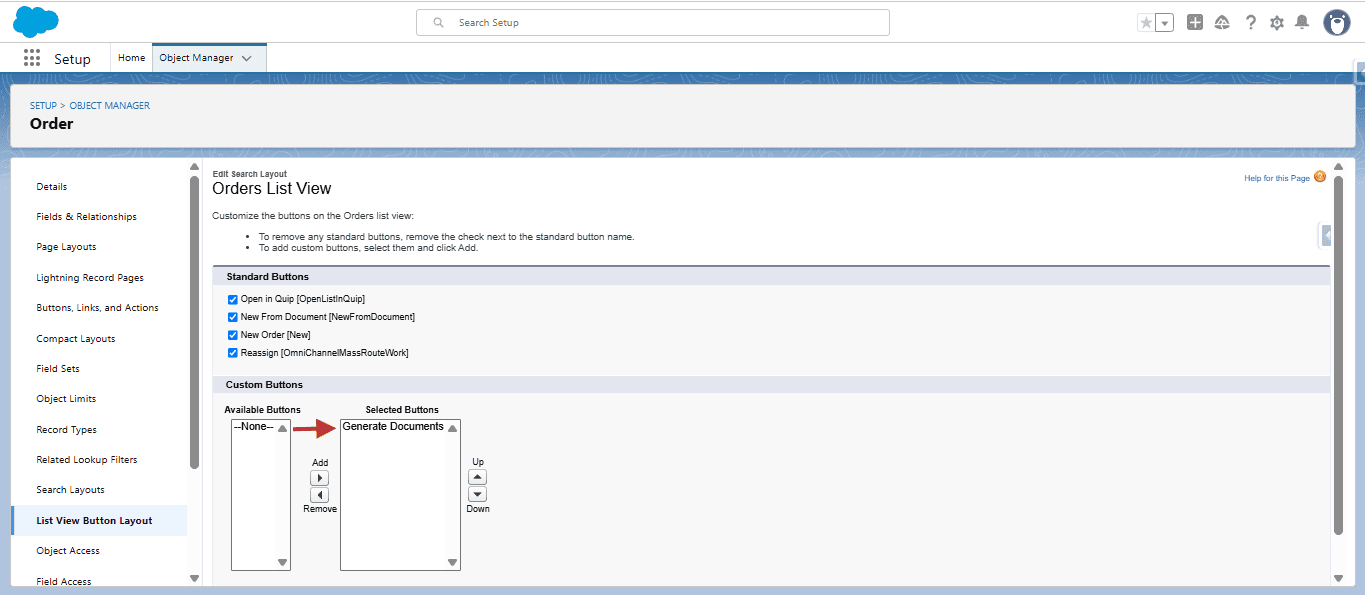
Add a standard List Button targeting the packaged Flow URL /flow/edocgen/EDocGen to process multiple selected records[cite: 4, 5].
Trigger background generation logic via Apex code, Scheduled Jobs, or Salesforce Invocable Actions[cite: 4].
To add a document generation button to a record page (e.g., Order or Opportunity):
edocgen:Templates, and assign a label like Generate Document[cite: 5].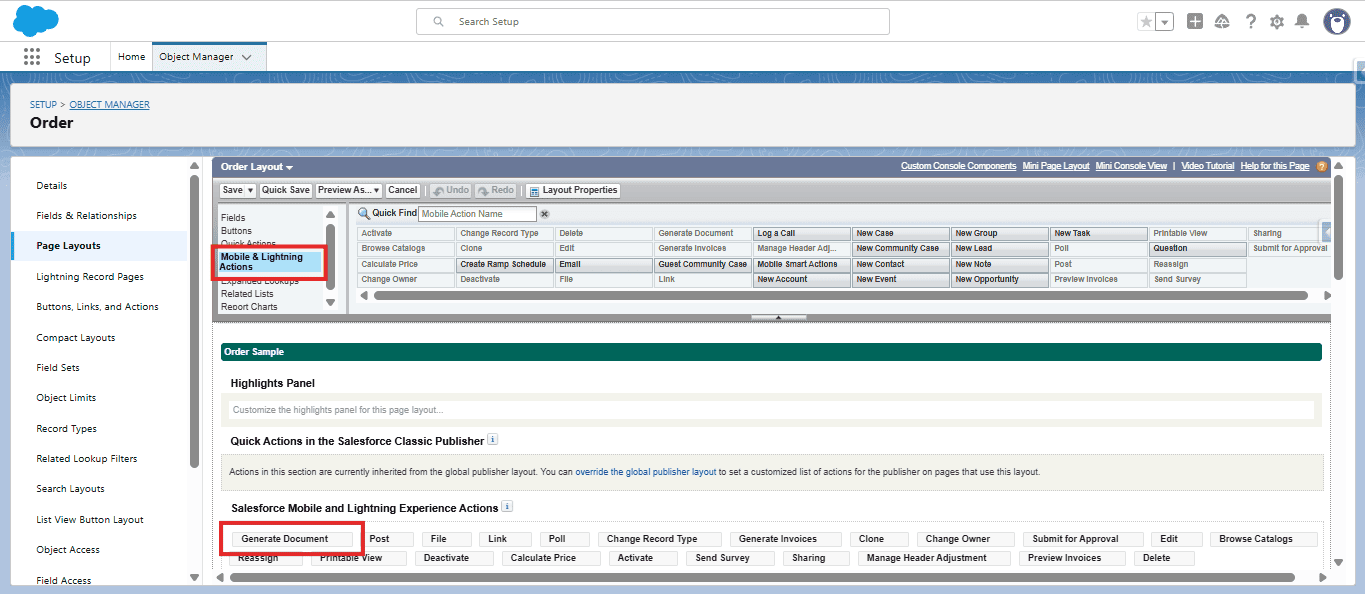
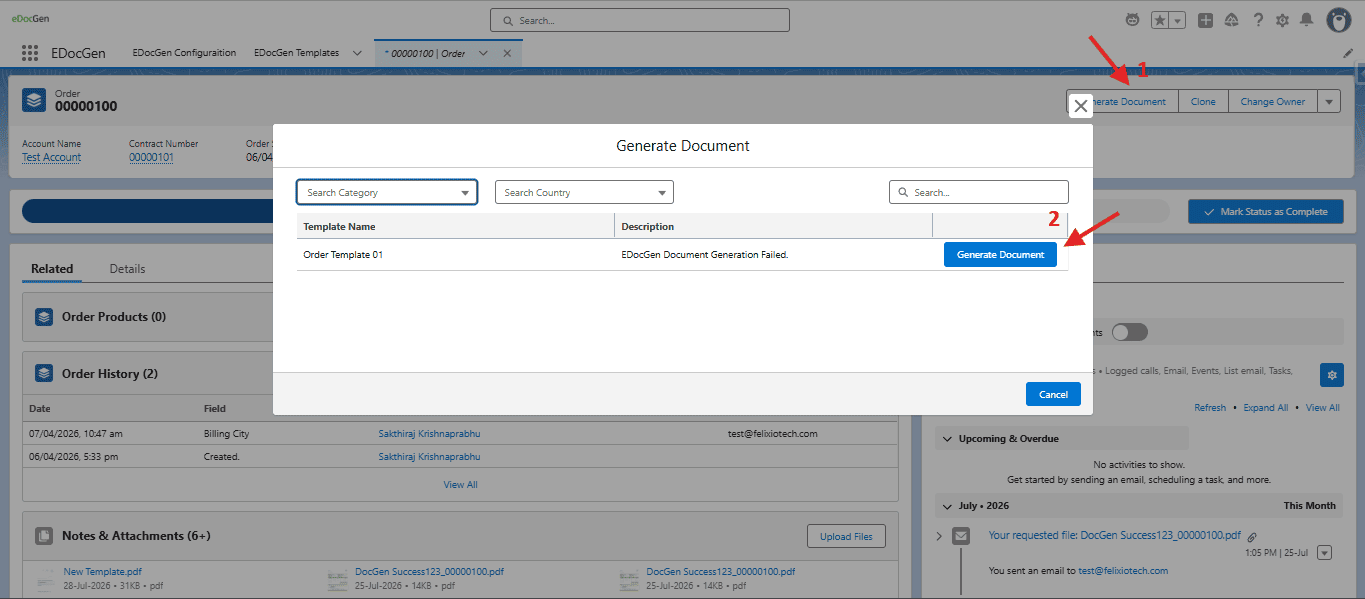
To enable multi-record generation from list views:
/flow/edocgen/EDocGen[cite: 5].
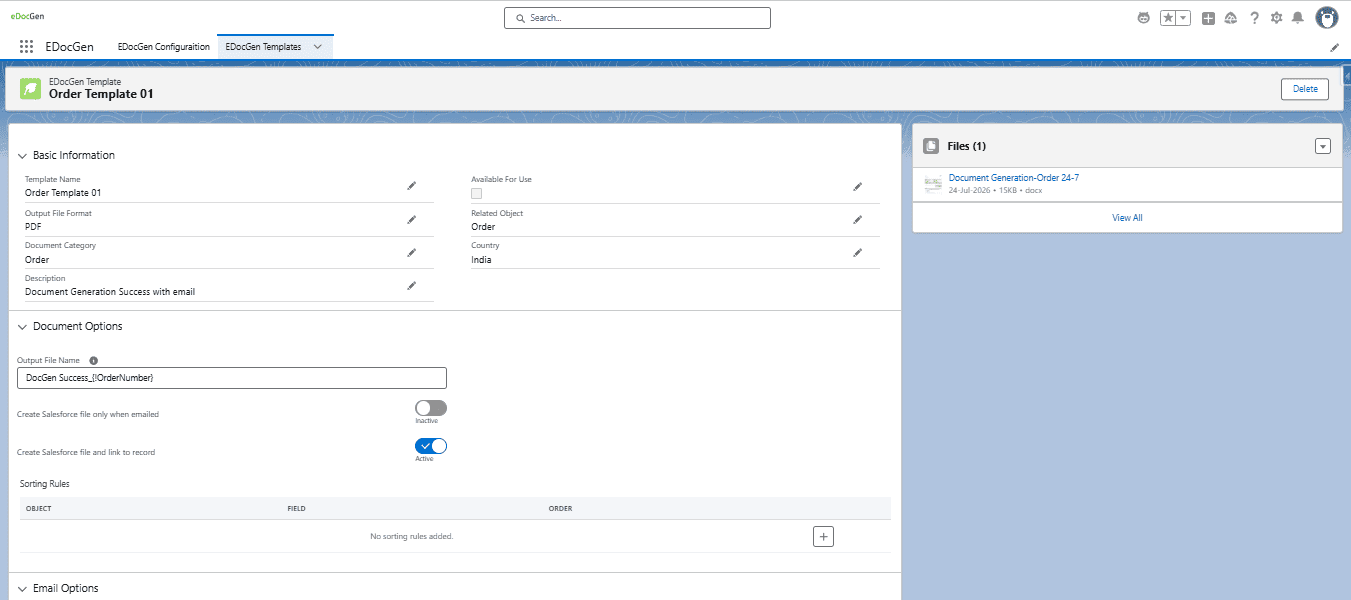
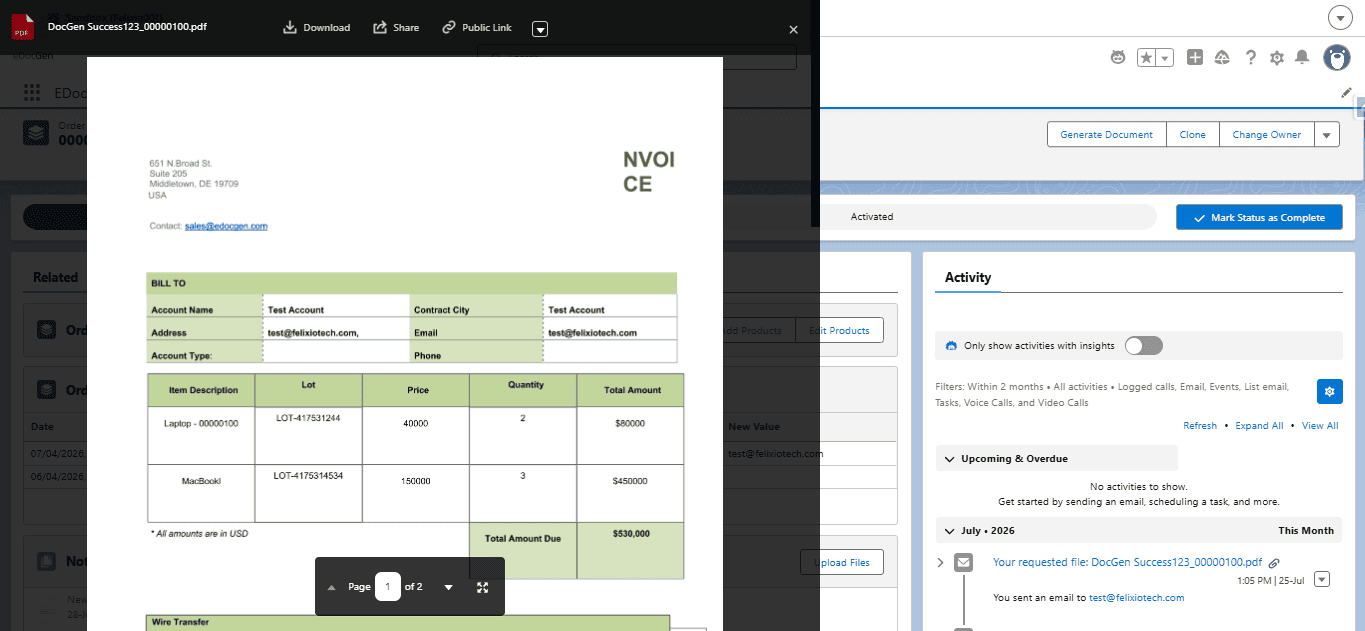
Manage your document templates and access generated files directly inside Salesforce[cite: 5]:
| Object Domain | Output Documents | Recommended Pattern |
|---|---|---|
Opportunity / Quote |
Proposals, Master Service Agreements | Single Record Action (Lightning Component)[cite: 4] |
Order / Account |
Invoices, Statements, Account Summaries | Apex Trigger or Scheduled Batch Job[cite: 4] |
Contact / Case |
Batch Letters, Work Order Summaries | List View Bulk Action Flow[cite: 4] |
Execute document generation programmatically from Apex using the global entry point method[cite: 4]:
edocgen.EdocGenDocumentGeneration.generateDocuments(wrapper)[cite: 4]
// Initialize wrapper with target Template ID and Record IDs
List<Id> recordIds = new List<Id>{ '001XXXXXXXXXXXX', '001YYYYYYYYYYYY' };
Id templateId = 'a0BXXXXXXXXXXXX'; // edocgen__EDocGen_Templates__c ID

edocgen.EdocGenDocumentGeneration.DocumentGenerationWrapper wrapper =
    new edocgen.EdocGenDocumentGeneration.DocumentGenerationWrapper(
        templateId,            // EDocGen Template ID or Name String
        recordIds,             // Single or multiple Record IDs
        null,                  // Org-Wide Email Address ID (Optional)
        'BillingAddress',      // To Address field API path (Optional)
        'Contact.Email',       // CC field API path (Optional)
        null                   // BCC field API path (Optional)
    );

// Trigger generation asynchronously
edocgen.EdocGenDocumentGeneration.generateDocuments(wrapper);
For extensive signature options and parameter details, reference the full Apex Quickstart Guide[cite: 4].
Templates are configured using familiar Office tags (e.g., {Account_Name}, {Total_Amount}) and synced to Salesforce via the EDocGen Templates (edocgen__EDocGen_Templates__c) object[cite: 4, 5].
To handle post-generation workflows (such as updating record status fields), implement the edocgen.ConnectorToOrg.ConnectorInterface[cite: 4]:
global class EDocGen_SuccessCallBack implements edocgen.ConnectorToOrg.ConnectorInterface {
    global void handleDocumentGenerateSuccess(Map<String, String> generateSuccessMap) {
        // Retrieve JSON mapping: RecordId -> ContentVersionId
        String recordToContentMapJson = generateSuccessMap.get('recordIdWithContentVersionIdMap');

        // Execute post-generation business logic
        System.debug('Generation output details: ' + generateSuccessMap);
    }
}Configure comma-separated admin email addresses in the EDocGen Configuration Tab to instantly receive notifications if document rendering or file upload failures occur[cite: 4, 5].
EDocGen uses reusable document templates containing merge fields that map to Salesforce objects such as Accounts, Opportunities, and Contacts. When a user clicks a generate button on a record, the app pulls the current field values, fills the template, and produces a finished document. The output can be saved to the record, attached as a file, or sent to recipients without leaving Salesforce.
EDocGen supports common business document formats, including PDF for sharing and archiving and editable Word (DOCX) files for review and revision. Templates are stored within Salesforce and can produce outputs in the formats your organization needs. For the complete and current list of supported output types, check the product documentation or ask your Salesforce administrator.
Yes. Users can select multiple records from a Salesforce list view or report and generate documents for all of them in one batch. Each document is personalized with the data from its own record, and the generated files are saved back to the corresponding records. Large batches run in the background, so users can continue working while processing completes.
EDocGen reads field values directly from Salesforce, including standard objects like Accounts and Contacts as well as custom objects. It can also populate tables with related child records, such as opportunity line items. Data is pulled at the time of generation, so documents reflect the latest CRM information, and access to sensitive fields follows your existing Salesforce permissions.