
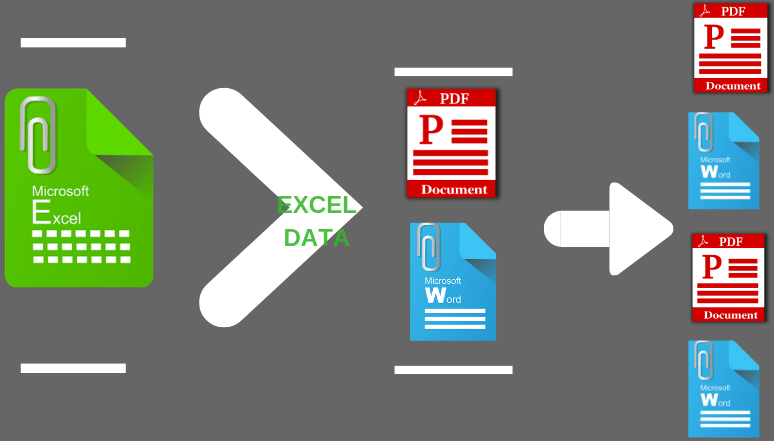
Microsoft Excel is a great program for data analysis, data manipulation, and storing data. It can even function as a small database. On the other hand, Microsoft Word is a wonderful tool for presenting data. So, they go hand in hand.
There are well-developed tools and techniques for automating Excel to Word data export. But the most popular approaches such as mail merge and Macros have serious shortcomings.
Thus document generation tools gained prominence for addressing these limitations.
It is the NextGen document generation software for the online mail merge. It offers the simplest and fastest way to export Excel files to Word templates. You can generate both Word and PDF documents.
It also supports document generation from Office 365 Word templates and Excel.
It offers both App and API for Excel to Word generation
Ease of Template creation: Business users can use existing document templates. They can edit the templates in Microsoft Word/PDF editors for adding text, table, image, and QR Code tags
.Top-notch performance: Generates thousands of documents in a few minutes.
Vertical mail merge: You can perform both horizontal (rows) merge and vertical (columns)) merge. You just have to choose what kind of merge you want to perform and the system automatically generates documents accordingly.
Many-to-one merge: One of the very few online mail merge software to support many-to-one mail merge. Regular mail merge produces one document for each Excel row. Using EDocGen, you can merge multiple rows grouped by a field into a single Microsoft Word document.
Image population: EDocGen allows you to dynamically populate images from the web, local computer, or DMS systems. You can define image size inside the template. The System automatically resizes the populated image.
Content blocks/paragraphs: Dynamically populate paragraphs into templates at run time. This makes your templates modular. Whenever there is a change in the content block, it recursively propagates the changes in all associated templates.
Loops and Lists: Using loops, populate tables and create lists with Excel data.
Conditional statements: The system supports simple to complex conditional logic. Using it
Generate Word documents from Excel data in 3 simple steps.
Step 1-Upload Excel: Upload the Excel file and choose the sheet from which you want to perform the merge. After that, select the orientation of your Excel (rows/columns) data. Horizontal orientation is set as default.
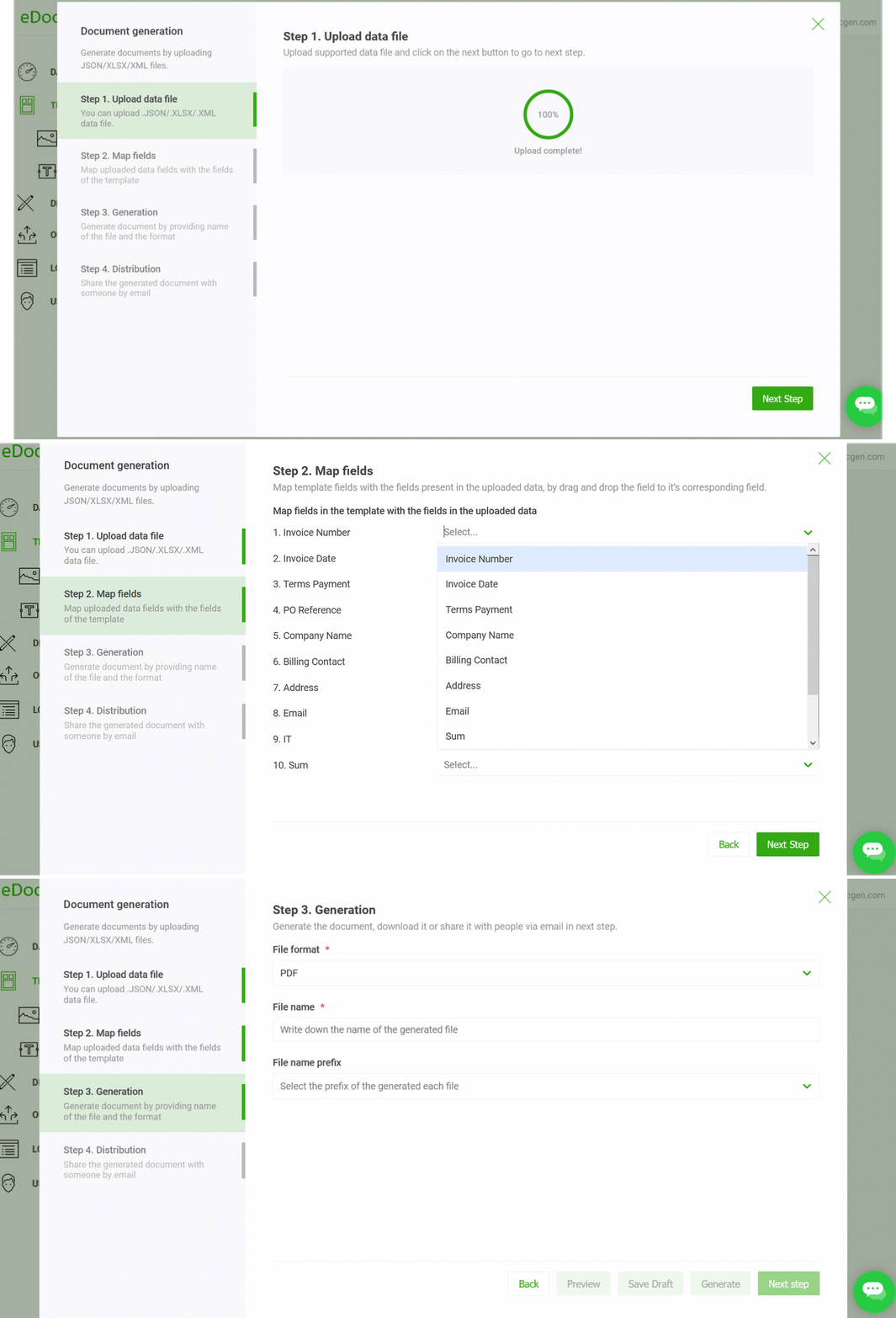
Step 2-Map fields: You can populate Excel data as-is. If Excel headers match with the template's dynamic field names, the system automatically maps them. Hence, you can skip this step. There is also an option for manual mapping. Thus you can control the data you wish to show on your documents.
Step 3-Generate files: You can use one of the dynamic fields for naming the files. The system generates Word files in bulk. There is an option to add dynamic prefixes to the names of the documents, for easy identification.
Step4-Document Distribution: This is an optional step. As in the mail merge, you can send generated documents as attachments to individual recipients. The system auto-sends generated documents to the listed email IDs, with a custom email body and subject. You can use dynamic fields in the body and subject.
You can also configure to send these documents from your business email. The system supports sending documents from Office 365, GSuite, SendGrid, and SES.
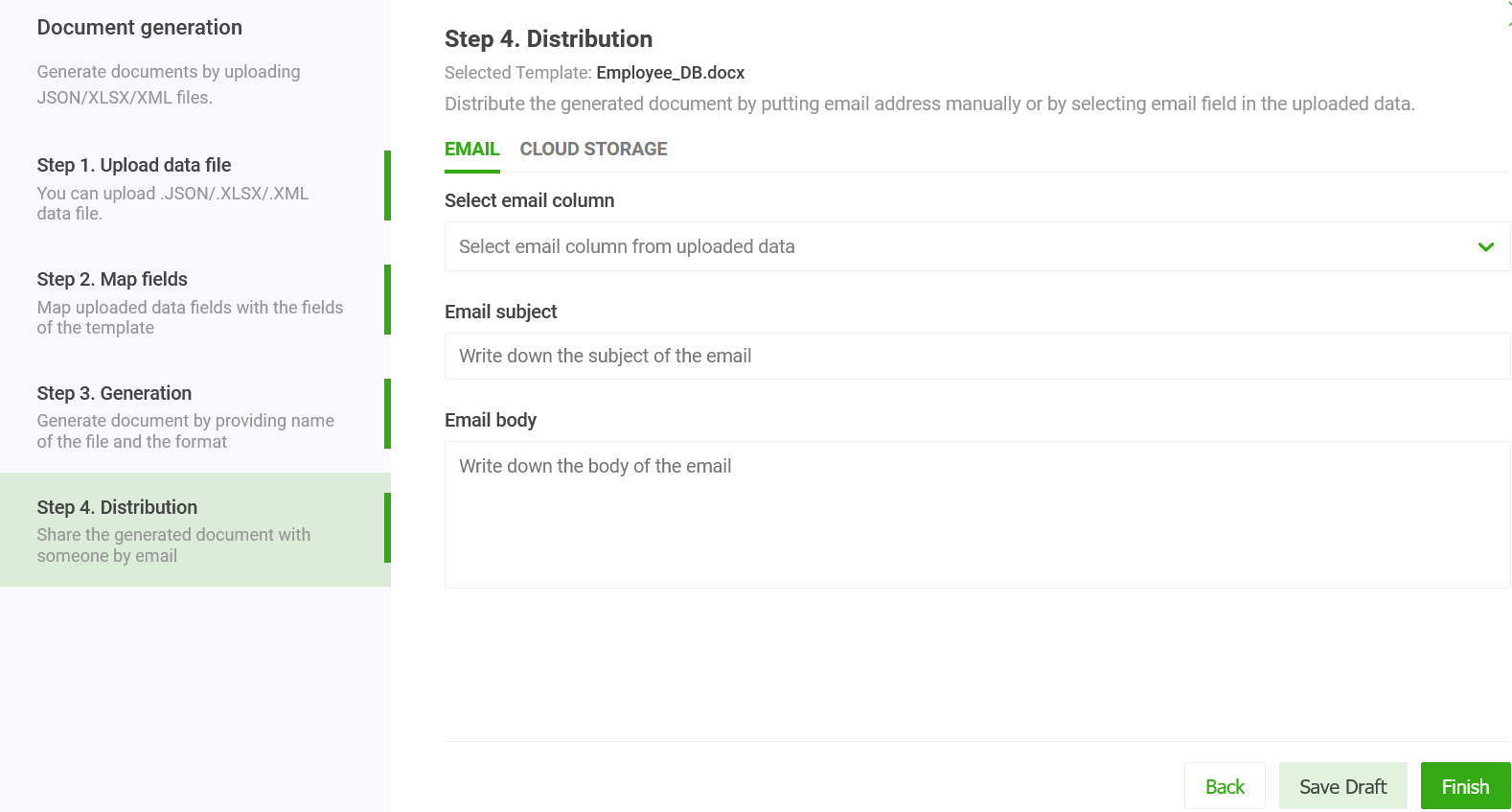
Apart from email, the system offers other distribution channels including
Email, print, e-sign, sync to cloud storage such as OneDrive, S3 bucket, Azure blob, etc.
For more details on how to export Excel to Docx template using App, refer to examples.
When we look at complex workbooks, it’s clear that Excel is often used as a digital canvas rather than a structured data tool. This "document-style" design prioritizes how information looks to a human reader, but it completely ignores how a machine needs to "read" that same data.
To a person filling out a spreadsheet, merged cells and empty rows provide "breathing room" and visual organization. To standard document automation software, however, these are roadblocks.
Isolated Islands: Each tab often functions as its own island with a unique layout—one using simple vertical pairs, the next a labyrinth of multi-sectioned grids and nested tables.
The "Anchor" Problem: Because there is no consistent structure, data gets trapped behind decorative headers or buried deep within gaps that break standard sorting and filtering.
The Manual Toll: Historically, trying to plug these files into an automation engine meant hours of "cleaning" the data—flattening tables and unmerging cells—before the generation could even begin.
This is where the new AI capabilities of EDocGen change the game. Instead of requiring you to reformat your business-critical workbooks, the system's AI-driven normalization engine interprets the Excel file just like a human would, but with the speed of a machine.
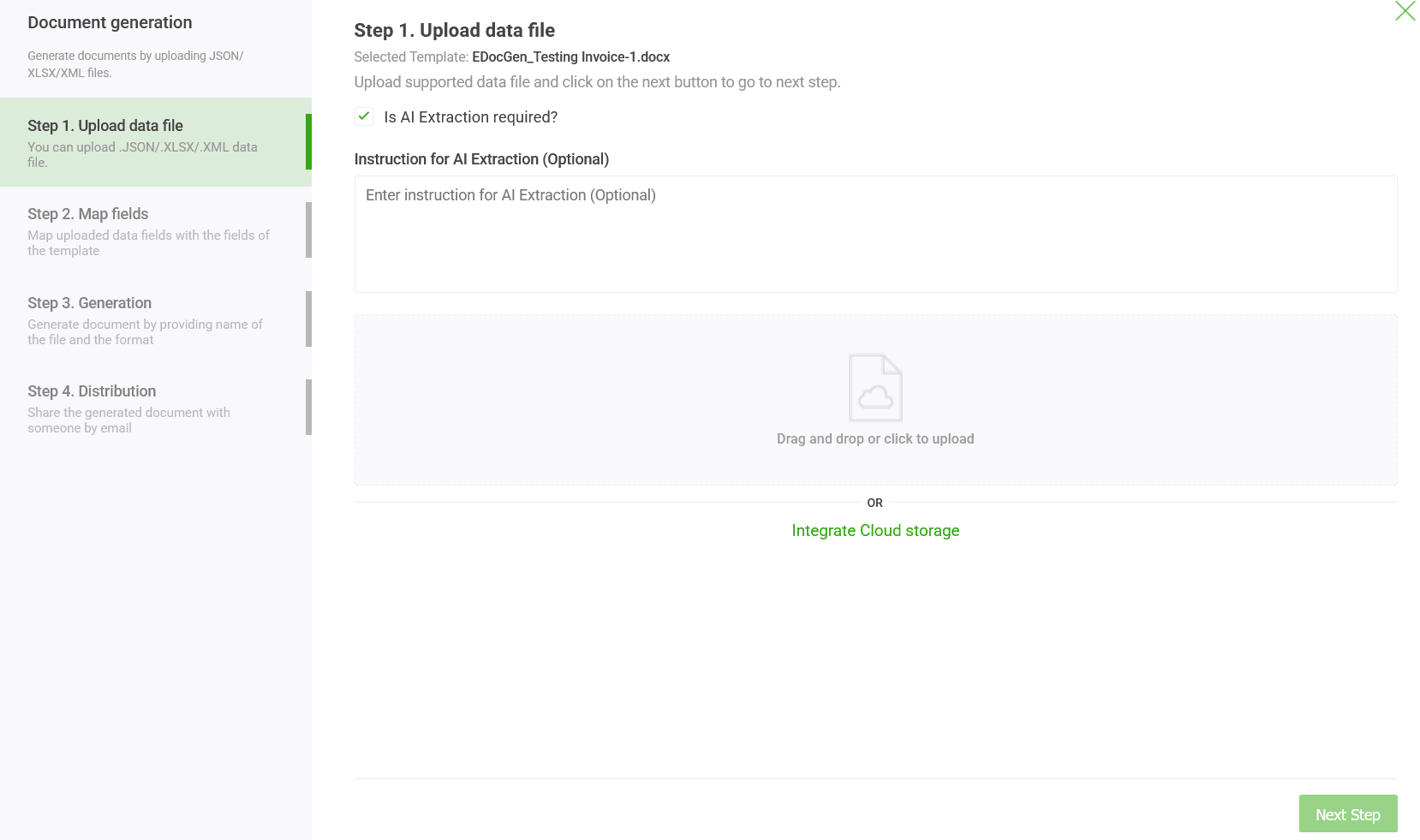
Zero Pre-Processing: You can upload a messy Excel file directly into the system. Simply toggle the “Is AI Extraction required?” checkbox during the upload step.
Context-Aware Instructions: While the AI is powerful out of the box, you can further refine the extraction by providing specific instructions. For example, you might tell the AI to "Extract only the 'Summary' table and ignore the 'Appendix' tab," or "Treat the headers in Row 5 as the primary data keys."
Human-in-the-Loop Validation: Once the AI processes the file, the system presents a clear preview. You can see exactly what value has been assigned to each header and review the extracted tables. This gives you the power to edit or confirm the data before moving to the generation phase.
By removing the "data cleaning" bottleneck, your team can move directly from a complex, human-designed workbook to a professional Word or PDF document in seconds. Whether it’s financial reporting, insurance quotes, or project summaries, EDocGen AI ensures your documents are accurate, no matter how "creative" the original spreadsheet was.
If you have a large number of calculations in your XLSX sheet, it's easy to perform them from top to bottom. Thus, in loan and mortgage data files, you find Excel headers in the first column. In subsequent columns, each column represents one record. While populating these Excel files into Word templates, the population has to happen vertically, from top to bottom and then left to right. Here the calculations are carried out in a certain order, not necessarily in the "fill order" of the Word template.
Below is an example of such a Microsoft Excel spreadsheet. The headers are in the first column and invoice records are in the next three columns.
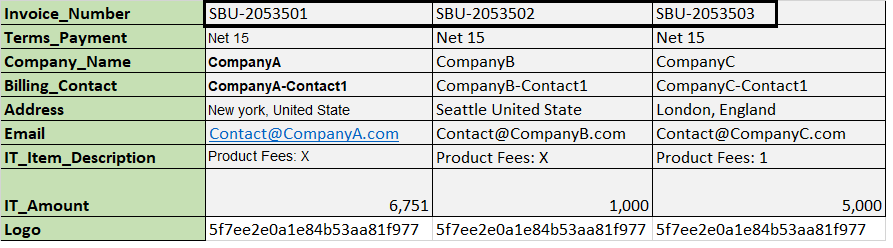
The system addresses this scenario, very elegantly. It produces one invoice document for each column of invoice data. Select the orientation of your Excel headers. The rest of the steps to merge cells are very similar to horizontal rows.
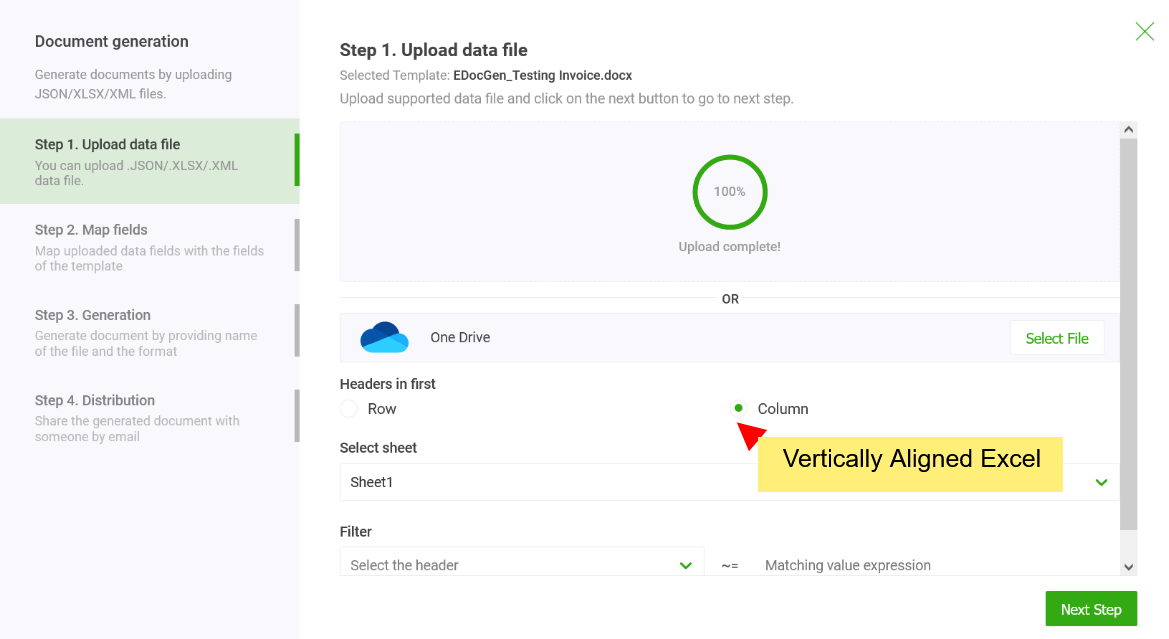
Business users can merge multiple Excel records into a single Word document without any IT help. They can use the existing Word template and Excel as-is, without any modifications. Thus, it's business-user-friendly, secure, and fast.
You can have multiple tables inside the template. The system can compute the sum for each of the table columns. For more details on how it works, refer to the many-to-one mail merge
It is an API-first product. The REST API offers an elegant, flexible solution that works in your preferred programming environment. Developers can integrate it with the existing IT ecosystem for the creation of documents from enterprise systems and document workflows. The generated documents can be distributed through various channels including downloads, E-sign, etc.
In summary, for exporting Excel to Word templates, EDocGen is the best solution for business users. It gives complete freedom to business users, whether they are using simple or complex templates. They can generate thousands of documents in a few minutes, making the Word document creation from Excel, a breeze.
Click on the register button to start generating Word documents from your Excel file.