XML to PowerPoint files
Posted by admin
Generate PPTX files automatically using XML data.

EDocGen automates the creation of presentations by merging JSON data into PowerPoint templates. This process transforms repetitive slide deck creation into a scalable, automated workflow.
The system streamlines JSON to PowerPoint conversion by automatically mapping structured data into PowerPoint templates for seamless presentation generation.
Template Preparation: Users start by creating a
standard PowerPoint file that serves as a blueprint. Within the
slides, specific >tags or placeholders (e.g.,
{ProjectName}
or
{QuarterlyRevenue}
) are placed where the dynamic content should appear.
Data Population: The system ingests JSON data , mapping the key-value pairs directly to the corresponding tags in the template. EDocGen’s engine parses the JSON to populate text, replace images, and even generate dynamic tables or charts based on the provided data arrays.
PPTX Distribution: Once the document is generated, the final PPTX file is distributed via integrated channels. It can be sent automatically through email, synced to cloud storage providers like SharePoint or Google Drive , or delivered via API to a downstream application.
Developers and business users can use the existing PPTX template files to generate the presentations. All that is needed is to add the appropriate dynamic tags to the existing templates. These tags act as placeholders, mapping JSON data into text, tables, images, slides, and even interactive charts. Once the templates are set up, the system enables the creation of thousands of presentations in just a few clicks.
In JSON-powered PowerPoint templates, text placeholders are defined using curly braces {}, allowing dynamic data to be inserted directly into slides. These tags act as markers, ensuring that the right content appears in the right place without manual intervention.
For example, {Name} and {Date} represent dynamic text fields that will be auto-filled during document generation. Similarly, placeholders like {Company_Name}, {Report_Period}, or {Invoice_Number} can be used to personalize presentations with structured data from JSON files.

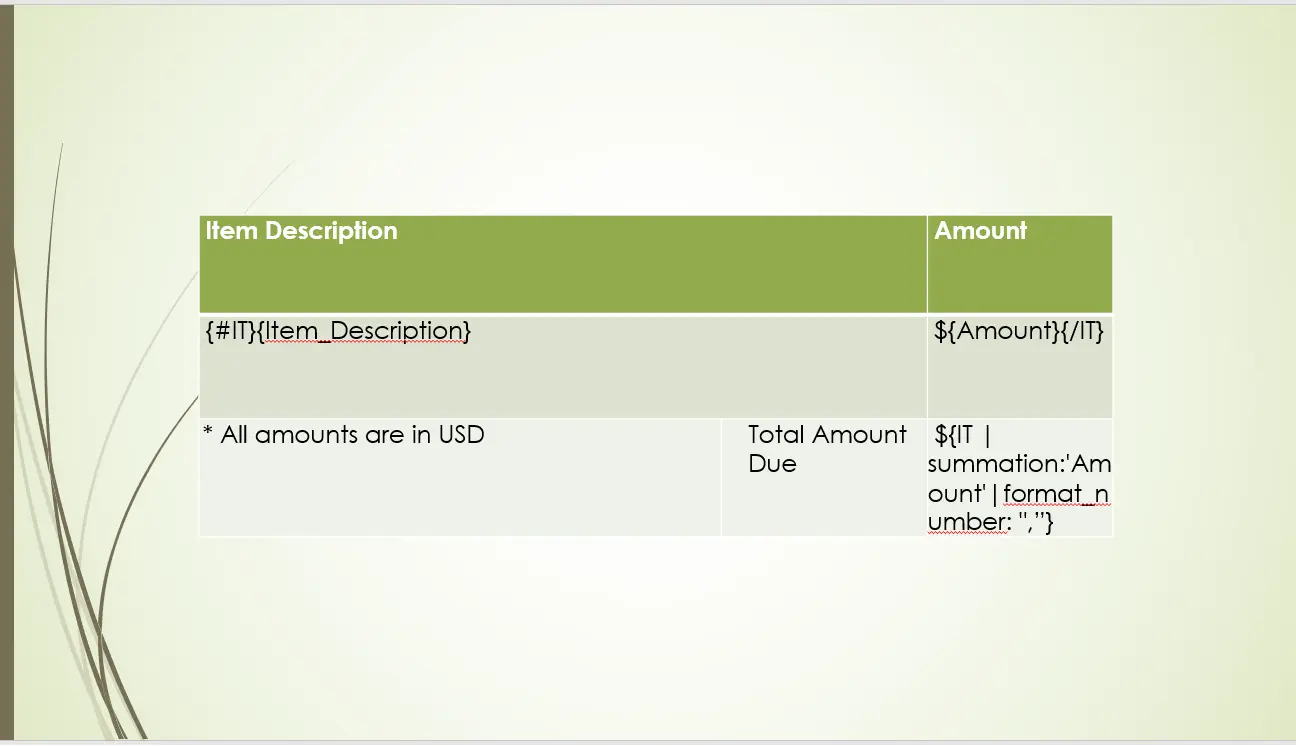
Instead of manually creating tables in PowerPoint, JSON-driven templates allow users to define where and how tabular data should be inserted.
To add a table, users specify the target slide and use {#tablename} at the start and {/tablename} at the end, ensuring JSON data is correctly mapped. Each column is represented by JSON field names inside curly braces. For example:
Additionally, JSON-based PowerPoint tables support formulas. For example, the {SUM(Amount)} tag can calculate totals directly within the presentation in financial reports.
The system loops over the JSON array to dynamically generate rows, allowing structured data like reports and invoices to be embedded into slides without manual adjustments.
JSON-driven PowerPoint presentations can dynamically insert images based on external data, eliminating the need for manual placement.
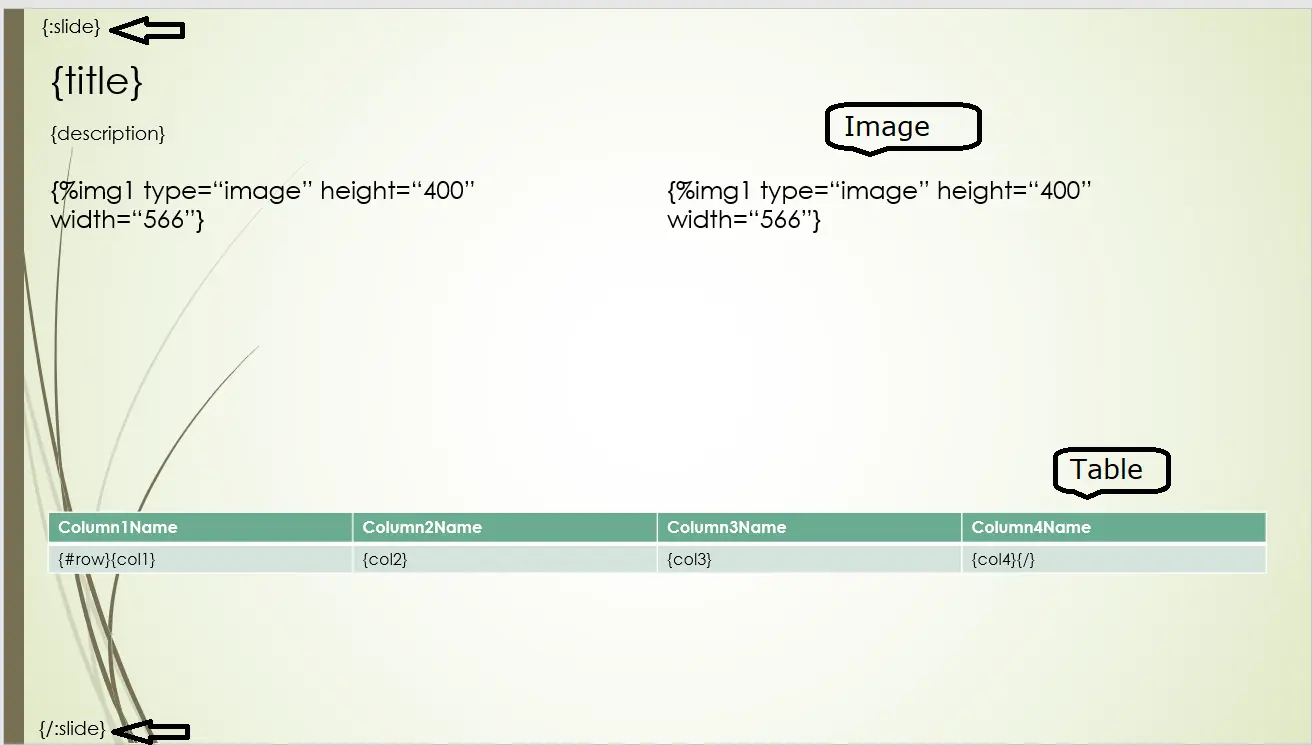
To insert an image, use the {%ImageField} tag, which allows images to be pulled from URLs, Base64 strings, or uploaded files and mapped onto slides. Users can also define custom image dimensions to ensure proper scaling, though this step is optional.
This capability is handy for scenarios where image updates are frequent, such as:
When working with multiple records, the {:slidesArray} tag dynamically generates a new PowerPoint slide for each record in a dataset. This allows structured data to be mapped onto slides efficiently without requiring manual duplication.
Additional tags for titles, descriptions, tables, and images can be used within each slide to ensure a well-structured layout.
JSON templates support conditional logic, allowing slides to dynamically adjust content based on specified conditions.
For example, using {#Lang == "English"}, only English content appears when the language is set to English. JSON also accommodates AND (&&) and OR (||) operators, enabling complex conditions for dynamic slide customization.
This is particularly valuable for:

JSON has a strong capability for handling interactive and data-driven charts, making it an ideal choice for real-time, dynamic presentations.
Users can generate various chart types, such as bar, pie, and line charts, directly from JSON data. This enables teams to automate JSON to PPT generation, ensuring every visual stays updated with fresh data.
Use cases include:

By incorporating these tags, businesses can automate PowerPoint creation without sacrificing control over design, layout, or data accuracy.
After adding tags to your template, upload it to the system.
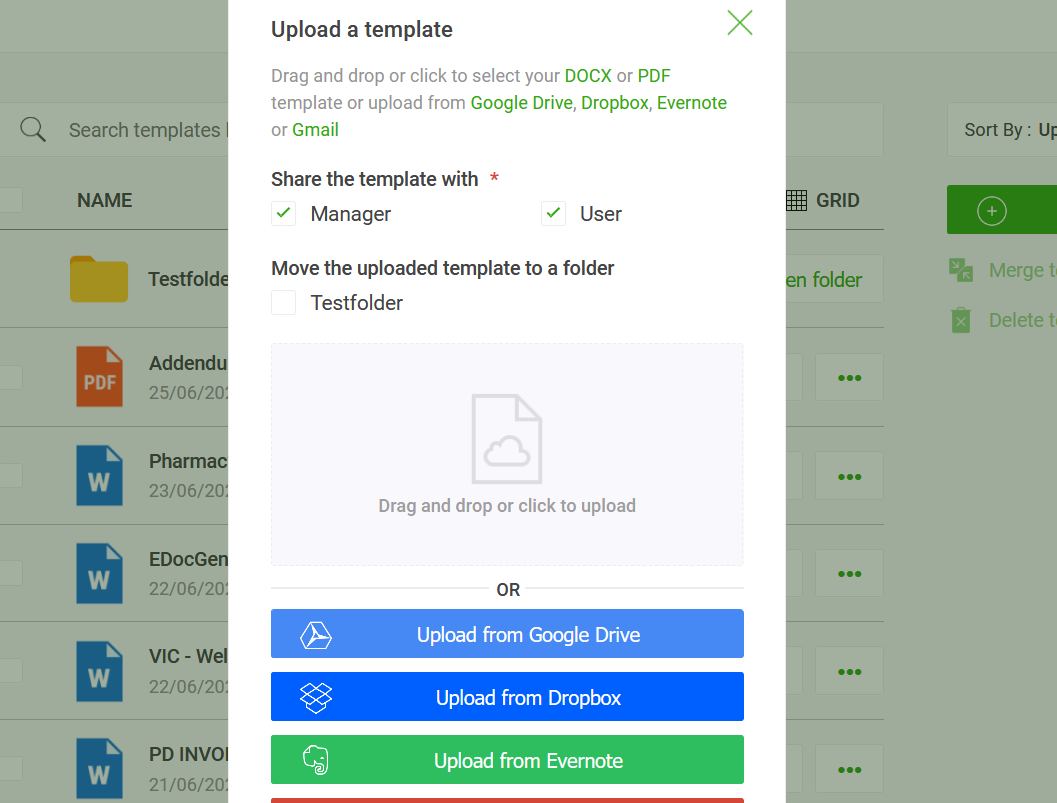
Now, you’re ready to generate PowerPoint presentations in bulk.
Next, let’s walk through how to export JSON to PowerPoint using EDocGen, whether through the UI or via API integration.
To generate PPTX from JSON, follow these simple steps:
Click on the ‘Generate’ button to open the document generation options.This simple process ensures that JSON data is accurately mapped into PowerPoint slides without requiring manual adjustments.
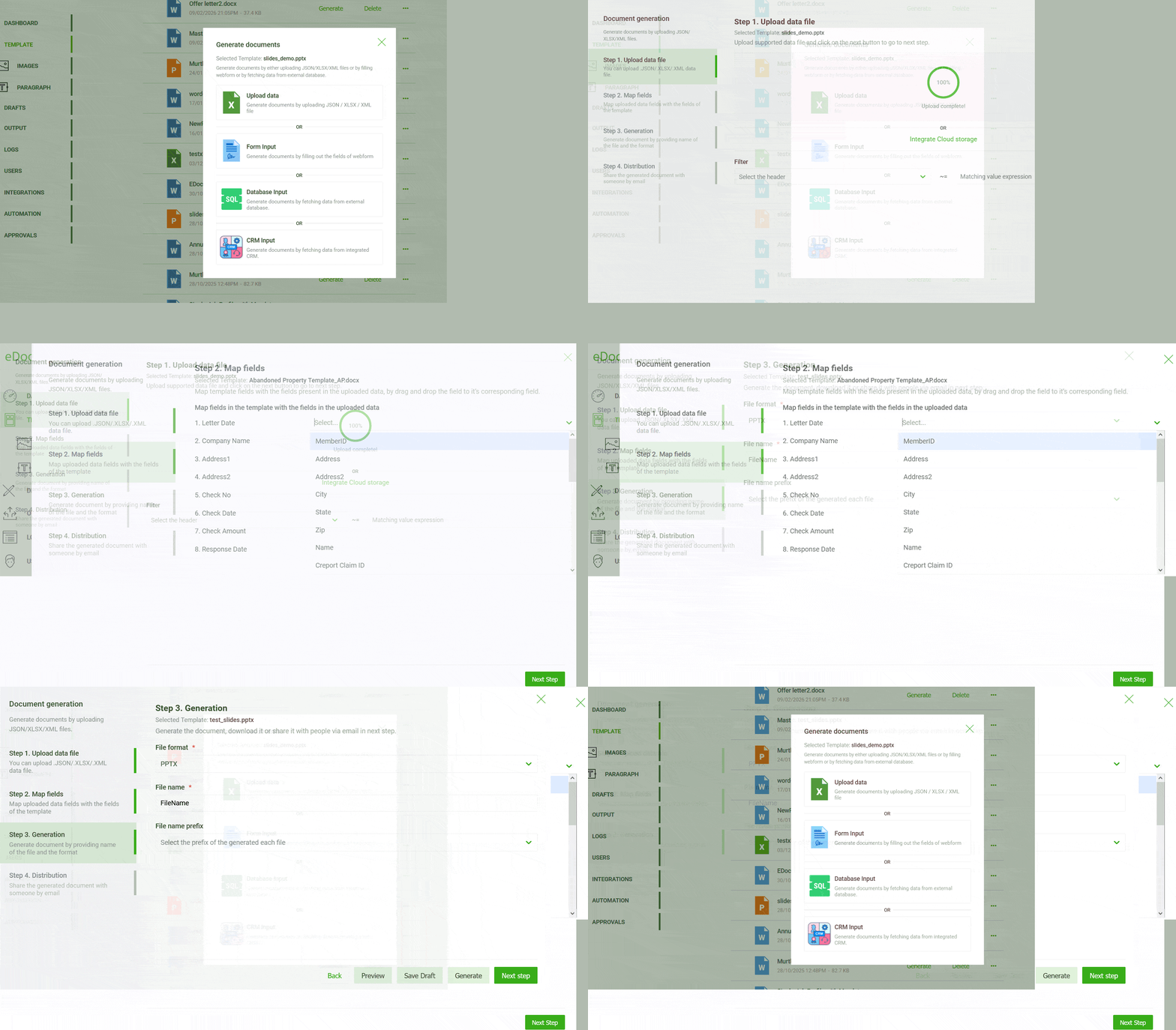
By following these steps, you can effortlessly convert JSON to PPTX. This hassle-free process ensures that business users can easily present their JSON data in an engaging and visually appealing PowerPoint presentation format.
The system's REST API offers a low-code/no-code solution for seamless automation.
Here’s how developers can programmatically generate PowerPoint presentations from JSON:
Developers can enable real-time synchronization with external data sources. The API pulls fresh data from CRMs, databases, and third-party apps, automatically reflecting updates in PowerPoint slides without requiring manual intervention. This ensures that every generated presentation contains the latest figures, reports, and insights.
This method is ideal for companies looking to:
With both UI-based and API-driven export options, eDocGen provides the flexibility to generate JSON-powered PowerPoint presentations efficiently.
The platform processes large datasets instantly with capabilities such as:
With JSON-driven automation, slides update dynamically with charts, tables, and multilingual content. Here’s how:
The system ensures compliance with enterprise security standards by:
If this aligns with your needs, book a demo to see how it automatically transforms JSON into structured, dynamic PowerPoint presentations.
Posted by admin
Generate PPTX files automatically using XML data.
Posted by admin
Generate PowerPoint files automatically using Excel data.
Posted by admin
Almost all enterprise databases and applications allow you to export data in JSON format.