Generate Word documents from JSON data
Posted by admin
Creating Documents is universal truth across organizations. Every organization either big or small.

SQL Server on Azure enables organizations to use SQL Server in the cloud without having to manage any on-premises hardware. It scales both horizontally and vertically. Developers build apps faster and more efficiently with computing resources that automatically scale based on workload demand.
One of the most common use cases of .Net applications is to generate documents from the MSSQL database. In this article, we'll take a look at how to populate data from the MSSQL database running on Azure into a template and then generates a pdf-format file with EDocGen APIs. So let's get started.
Our goal in this article is to
Let's get started.
If we want to connect to a database on Azure through an Asp.Net Core application, we will first need to configure the Network settings on Azure. For this, let's choose the database that we created earlier on Azure.
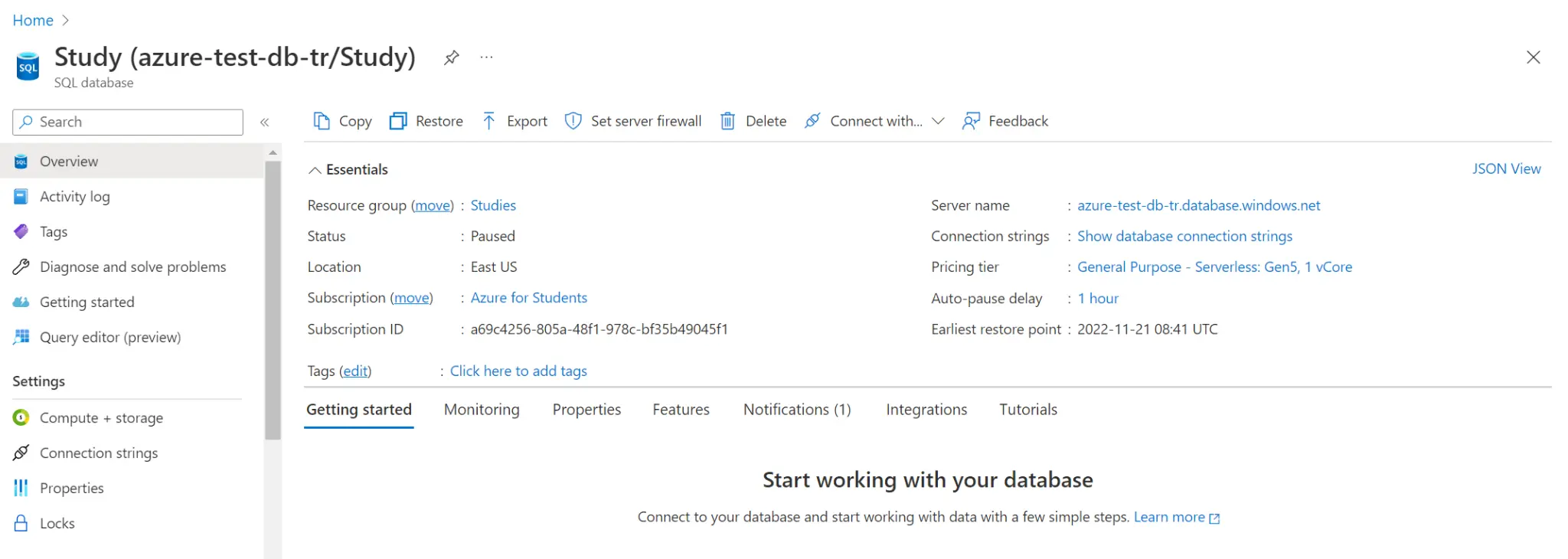
Click the 'Set firewall settings' button.
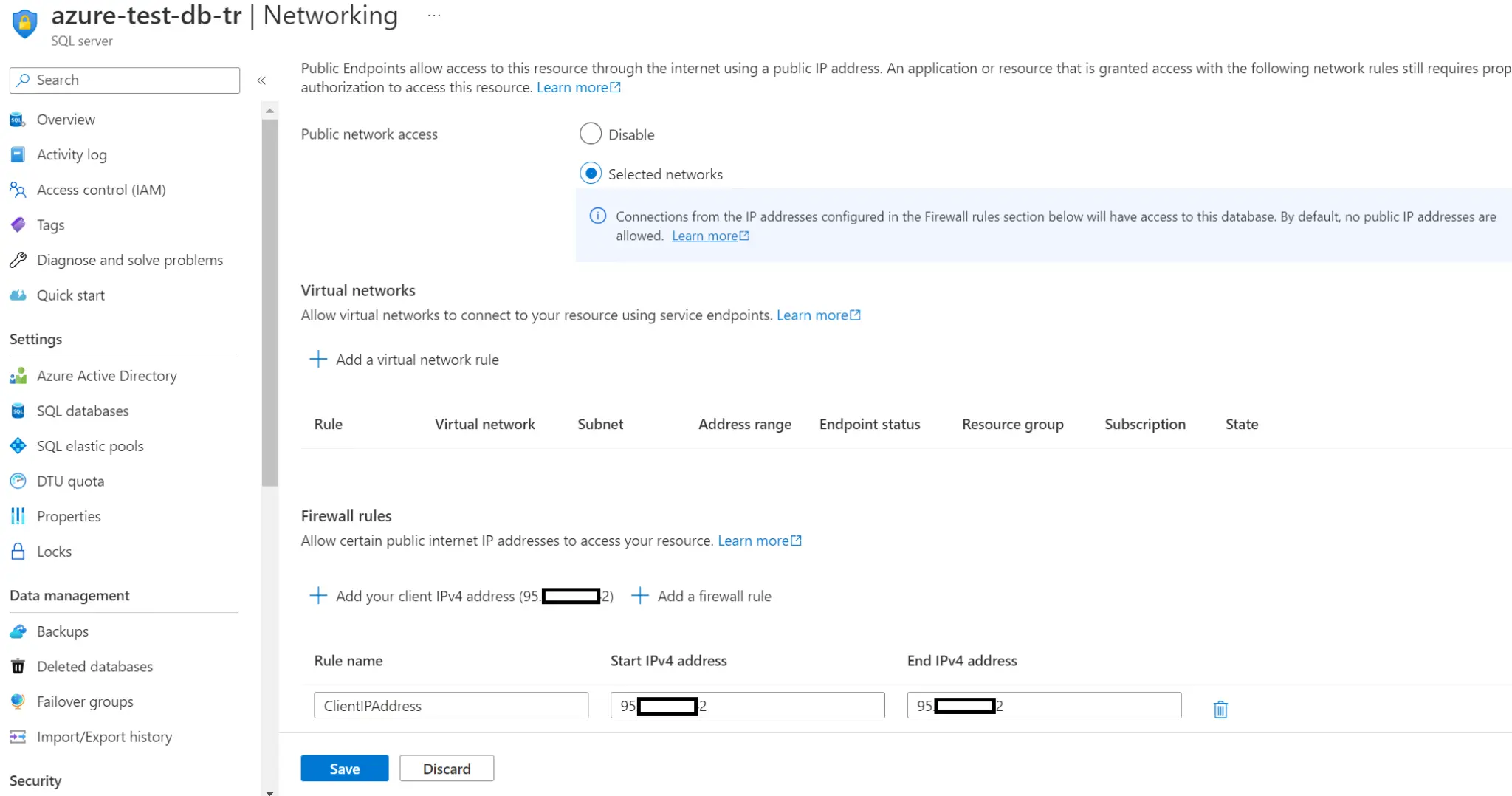
We will do our operations in the 'public access' section on the page that opens. Let's set the 'public network access' option from Disable to Selected Networks. In this way, we can provide access to our MSSQL database from the IP address we have determined.
Then, under the 'Firewall rules' heading, you will see your local IP address as an example. In this example, we will allow access to the database only from our machine. Therefore, let's click the 'Add your client IPv4 address {(IP_ADDRESS)} button and affect our IP address for access authorization. Then press the 'Save' button and save the settings.
Now, let's move on to the code side and continue our operations.
On the code side, let's create a class called 'InvoiceRepository'. This class will be responsible for the connection and queries to the MSSQL database running in Azure.
Take a look at the below table structure. To create the PDF files, we will populate the template with information from these tables.
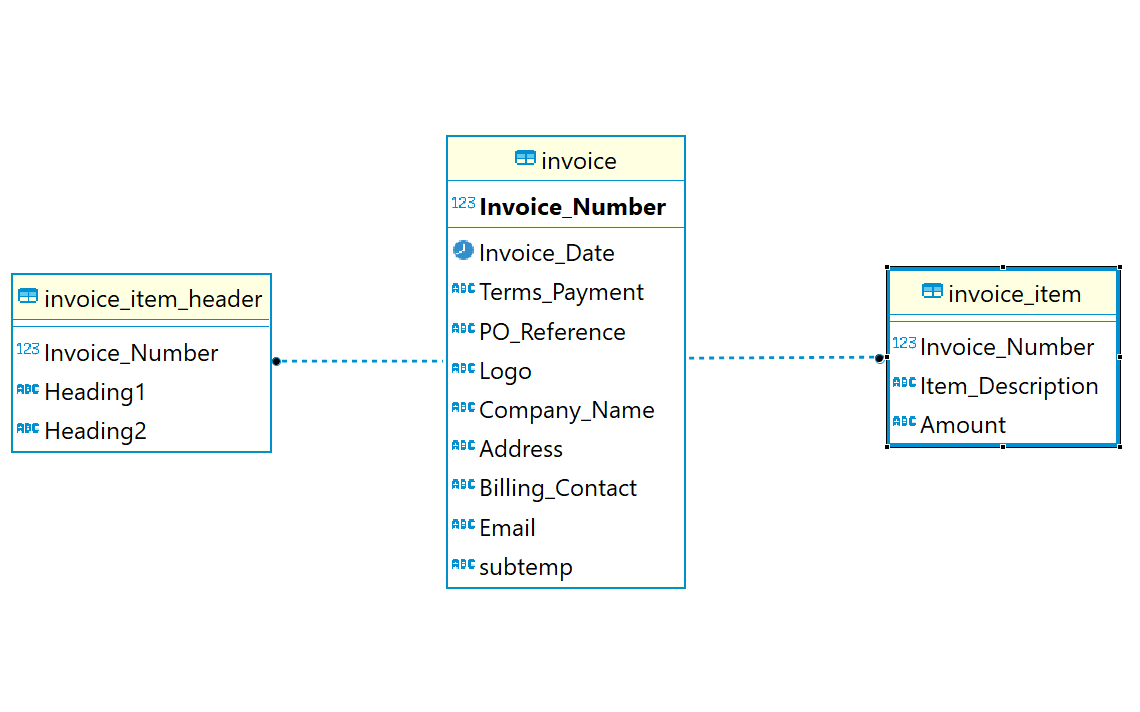
We use the native SQL query with “JSON AUTO” to pull the data in JSON format.
SELECT
i.Invoice_Number ,
i.Invoice_Date ,
i.Terms_Payment ,
i.Company_Name  ,
i.Billing_Contact ,
i.Address ,
i.Logo ,
i.Email ,
i.subtemp ,
(SELECT iih.Heading1 , iih.Heading2
 FROM invoice_item_header iih
 WHERE iih.Invoice_Number = i.Invoice_Number
 FOR JSON AUTO) As ITH,
(SELECT ii.Item_Description, ii.Amount
 FROM invoice_item ii
 WHERE ii.Invoice_Number = i.Invoice_Number
 FOR JSON AUTO) As IT
FROM invoice i
FOR JSON AUTO
This query outputs the following JSON.
[
  {
    "Invoice_Number": 1,
    "Invoice_Date": "2020-01-07",
    "Terms_Payment": "Net 15",
    "Company_Name": "Company A",
    "Billing_Contact": "A-Contact1",
    "Address": "New york, United States",
    "Logo": "62b83ddcd406d22dc7516b53",
    "Email": "abhishek.gosavi@toppr.com",
    "subtemp": "62c85b97f156ce4fbdb01bcb",
    "ITH": [
      {
        "Heading1": "Item Description",
        "Heading2": "Amount"
      }
    ],
    "IT": [
      {
        "Item_Description": "Product Fees: X",
        "Amount": "5,000"
      }
    ]
  }
]
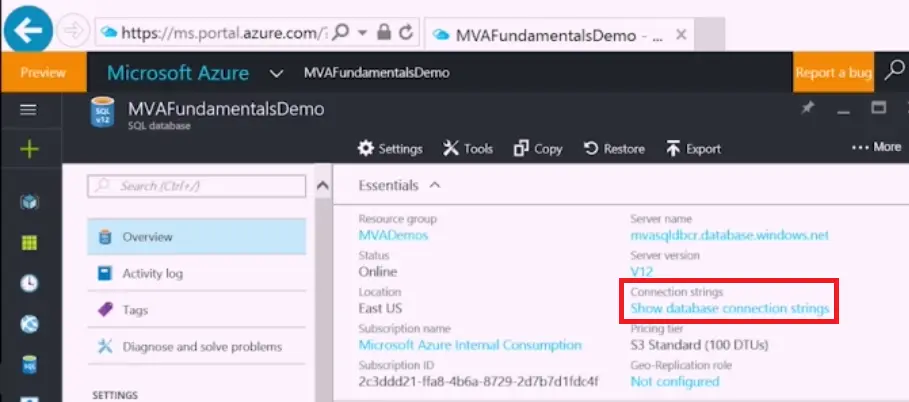
Log into Azure Portal > click on corresponding SQL Database > Overview > click 'Show database connection strings' under Connection strings':
InvoiceRepository
We use these details to retrieve the data in JSON format from our SQL server with the above query.
using System.Data.SqlClient;
using System.Text;

namespace TemplateBasedApplication.Repository
{
    public class InvoiceRepository
    {
        private readonly string _connectionString = "Server=tcp:azure-test-db-tr.database.windows.net,1433;" +
            "Initial Catalog=Study;Persist Security Info=False;User ID=root;Password={your_password_here};" +            "MultipleActiveResultSets=False;Encrypt=True;TrustServerCertificate=False;Connection Timeout=30;";

        public string getInvoice()
        {

            using (SqlConnection connection = new SqlConnection(_connectionString))
            {
                string query = "SELECT " +
                    "i.Invoice_Number ," +
                    "i.Invoice_Date ," +
                    "i.Terms_Payment ," +
                    "i.Company_Name  ," +
                    "i.Billing_Contact ," +
                    "i.Address ," +
                    "i.Logo ," +
                    "i.Email ," +
                    "i.subtemp , " +
                    "(SELECT iih.Heading1 , iih.Heading2 " +
                        "FROM invoice_item_header iih " +
                        "WHERE iih.Invoice_Number = i.Invoice_Number " +
                        "FOR JSON AUTO) As ITH," +
                    "(SELECT ii.Item_Description, ii.Amount " +
                        "FROM invoice_item ii " +
                        "WHERE ii.Invoice_Number = i.Invoice_Number " +
                        "FOR JSON AUTO) As IT " +
                    "FROM invoice i " +
                    "FOR JSON AUTO";

                using (SqlCommand command = new SqlCommand(query, connection))
                {
                    connection.Open();
                    var jsonResult = new StringBuilder();
                    var reader = command.ExecuteReader();
                    while (reader.Read())
                    {
                        jsonResult.Append(reader.GetValue(0).ToString());
                    }

                    return jsonResult.ToString();
                }
            }
        }
    }
}After completing our database operations, we will now move on to the service layer of the application. In this layer, the data obtained from the database will be saved as a json file first. Then the saved json format file will be sent to EDocGen's '/generate/bulk' service with the necessary information. This JSON data will populate the template, we created before and produces output in PDF format.
In the next step, we will send the generated pdf-format file to the email address listed in the JSON file.
The structure of the '/generate/bulk' service we will request is as follows.
|
Url |
|
|
Method |
HTTP POST |
|
Parameters |
● documentId(string, formData): id of the template ● format(string, formData) : output format Docx or PDF. Default Docx ● outputFileName(string, formData): file name for the output file ● inputFile(file, formData): file containing marker values. JSON, XLSX and XML supported |
|
Headers |
● x-access-token(string, header): authorization header as obtained by calling login ● Content-Type(string header): multipart/form-data |
           void downloadBulkUsingDB()
        {
            String format = "pdf";
            String dbVendor = "mysql";
            String dbUrl = "tcp:azure-test-db-tr.database.windows.net:1433/sql6511576/sdtest";
            String dbPassword = "u8M7IYAq7a";
            String dbQuery = "select * from sdtest";
            String dbLimit = "100";
            String downloadedFileExt = ".zip";
            Int32 MAX_RETRY = 50;
            Int32 RETRY = 0;
            String documentId = "62f063426844520f75344091";

            String FileName = Guid.NewGuid().ToString();
            String keyToFileName = "";

            try
            {
                var client = new RestClient("https://app.edocgen.com");
                var request = new RestRequest("/api/v1/document/generate/bulk", Method.Post);
                request.AddHeader("Content-Type", "multipart/form-data");
                request.AddHeader("x-access-token", token);
                request.AlwaysMultipartFormData = true;

                request.AddParameter("outputFileName", FileName);
                request.AddParameter("dbVendor", dbVendor);
                request.AddParameter("dbUrl", dbUrl);
                request.AddParameter("dbLimit", dbLimit);
                request.AddParameter("dbPassword", dbPassword);
                request.AddParameter("dbQuery", dbQuery);
                request.AddParameter("documentId", documentId);
                request.AddParameter("format", format);
                if (!string.IsNullOrEmpty(keyToFileName)) {
                  request.AddParameter("keyToFileName", keyToFileName);
                }

                Console.WriteLine("Fetching data from MySQL Database");
                var response = client.Execute(request);
                var obj = JsonNode.Parse(response.Content);


                String ouputID = checkOutputGenerated(FileName, format, downloadedFileExt);

                while (ouputID == "" && RETRY < MAX_RETRY)
                {
                    ouputID = checkOutputGenerated(FileName, format, downloadedFileExt);
                    RETRY++;
                }
                if (ouputID == "")
                {
                    Console.WriteLine("No output generated at edocgen after several retries!!! Fatal error");
                    return;
                }
                else
                {
                    downloadOutput(ouputID, FileName, downloadedFileExt);
                }

            }
            catch (Exception ex)
            {
                Console.WriteLine(ex);
            }

        }
DocumentDatabaseService
using RestSharp;
using System;
using System.IO;
using System.Threading.Tasks;
using TemplateBasedApplication.Exceptions;
using TemplateBasedApplication.Helper.Constants;
using TemplateBasedApplication.Models;
using TemplateBasedApplication.Repository;

namespace TemplateBasedApplication.Services
{
    public class DocumentDatabaseService
    {
        private readonly CacheService cacheService;
        private readonly EmailService emailService;
        private readonly InvoiceRepository invoiceRepository;

        public DocumentDatabaseService(CacheService cacheService, EmailService emailService, InvoiceRepository invoiceRepository)
        {
            this.cacheService = cacheService;
            this.emailService = emailService;
            this.invoiceRepository = invoiceRepository;
        }

        public async Task executeDocumentFromDatabaseProcess(string email)
        {
            try
            {
                FileRequestModel fileRequestModel = createFileRequestModel();
                generateJsonFileFromDatabase(fileRequestModel);
                await generateDocument(fileRequestModel);
                await emailService.processOutput(fileRequestModel, email);
            }
            catch (FileGenerationException ex)
            {
                Console.WriteLine(ex.Message);
                throw new FileGenerationException("Error occurred while generating document");
            }
        }

        private async Task generateDocument(FileRequestModel fileRequestModel)
        {
            var client = new RestClient("https://app.edocgen.com");
            var request = new RestRequest("/api/v1/document/generate/bulk", Method.Post);
            request.AddHeader("Content-Type", "multipart/form-data");
            request.AddHeader("x-access-token", fileRequestModel.token);
            request.AddParameter("documentId", FileGenerationConstants.DEFAULT_TEMPLATE_ID);
            request.AddFile("inputFile", fileRequestModel.filePath);
            request.AddParameter("outputFileName", fileRequestModel.fileName);
            request.AddParameter("format", FileGenerationConstants.PDF_OUTPUT_FORMAT);

            var response = await client.ExecuteAsync(request);

            validateResponse(response);
            return response;
        }

        private void validateResponse(RestResponse response)
        {
            if (isNotResponseValid(response))
                throw new InvalidServiceResponseException($"Error occurred as a result of service call: {response.ResponseUri} , " +
                    $"message: {response.ErrorMessage} , " +
                    $"exception: {response.ErrorException}");
        }

        private bool isNotResponseValid(RestResponse response)
        {
            return !(response != null && response.StatusCode == System.Net.HttpStatusCode.OK);
        }

        private FileRequestModel createFileRequestModel()
        {
            var token = cacheService.Get(RedisConstant.PDF_GENERATOR_TOKEN);
            var fileName = Guid.NewGuid().ToString();
            var filePath = @"./Sources/" + fileName + ".json";

            FileRequestModel fileRequestModel = new FileRequestModel()
            {
                token = token,
                filePath = filePath,
                fileName = fileName
            };

            return fileRequestModel;
        }

        private void generateJsonFileFromDatabase(FileRequestModel fileRequestModel)
        {
            string invoice = invoiceRepository.getInvoice();
            saveJson(fileRequestModel, invoice);
        }

        private void saveJson(FileRequestModel fileRequestModel, string data)
        {
            File.WriteAllText(@"./Sources/" + fileRequestModel.fileName + ".json", data);
        }
    }
}
We obtained a json format output by populating the data in json format we obtained from the database in the template we want. Now it remains to send this pdf file to the email address received from the user. In this process, we will be implementing the step.
In the first step, we will get the Id value of the file we created by making a request to EDocGen's '/output/name/{filename}' service.
In the second step, we will send the Id value and the user's email address information to EDocGen's '/output/email' service. Thus, the file in pdf format we have created will be sent to the user's email address.
The structure of the '/output/name/{filename}' service that we will use to obtain the Id information of the file is as follows.
|
Url |
https://app.edocgen.com/api/v1 /api/v1/output/name/{output_file_name} |
|
Method |
HTTP GET |
|
Headers |
● x-access-token(string, header): authorization header as obtained by calling login ● Content-Type(string header): multipart/form-data |
The structure of the '/output/email' service we will use to send emails is simply like this
|
Url |
https://app.edocgen.com/api/v1 /api/v1/output/email |
|
Method |
HTTP POST |
|
Body |
{ “outId”:”string”, “emailId”:”string” } |
|
Headers |
● x-access-token(string, header): authorization header as obtained by calling login ● Content-Type(string header): multipart/form-data |
EmailService
using Newtonsoft.Json;
using RestSharp;
using System;
using System.Linq;
using System.Threading;
using System.Threading.Tasks;
using TemplateBasedApplication.Exceptions;
using TemplateBasedApplication.Helper.Constants;
using TemplateBasedApplication.Models;
using TemplateBasedApplication.Models.Dto;

namespace TemplateBasedApplication.Services
{
    public class EmailService
    {
        public async Task processOutput(FileRequestModel fileRequestModel, string email)
        {
            try
            {
                var outputId = getOutputId(fileRequestModel);

                var client = new RestClient("https://app.edocgen.com");
                var request = new RestRequest("/api/v1/output/email", Method.Post);
                request.AddHeader("Content-Type", "application/json");


                request.AddHeader("x-access-token", fileRequestModel.token);

                request.AddJsonBody(
                                new
                                {
                                    outId = outputId,
                                    emailId = email
                                });
                var response = await client.ExecuteAsync(request);
                validateResponse(response);
            }
            catch (Exception ex)
            {
                throw new ProcessOutputException(ex.Message);
            }
        }

        private string getOutputId(FileRequestModel fileRequestModel)
        {
            Thread.Sleep(10000);
            var client = new RestClient("https://app.edocgen.com");
            var requestUrl = $"/api/v1/output/name/{fileRequestModel.fileName}.{FileGenerationConstants.PDF_OUTPUT_FORMAT}";

            var request = new RestRequest(requestUrl, Method.Get);
            request.AddHeader("Content-Type", "multipart/form-data");
            request.AddHeader("x-access-token", fileRequestModel.token);

            var response = client.Execute(request);
            validateResponse(response);

            var outputModelDto = JsonConvert.DeserializeObject(response.Content);
            validateOutputResponse(outputModelDto);
            return outputModelDto.output[0]._id;
        }

        private void validateResponse(RestResponse response)
        {
            if (isNotResponseValid(response))
                throw new InvalidServiceResponseException($"Error occurred as a result of service call: {response.ResponseUri} , " +
                    $"message: {response.ErrorMessage} , " +
                    $"exception: {response.ErrorException}");
        }

        private bool isNotResponseValid(RestResponse response)
        {
            return !(response != null && response.StatusCode == System.Net.HttpStatusCode.OK);
        }

        private void validateOutputResponse(OutputModelDto outputModelDto)
        {
            if (isNotOutputResponseValid(outputModelDto))
                throw new InvalidOutputResponseException("Output model is not valid");
        }

        private bool isNotOutputResponseValid(OutputModelDto outputModelDto)
        {
            return !(outputModelDto != null && outputModelDto.output.Any());
        }
    }
} In this layer, requests from the user will be handled. In a class named 'DocumentController' we can paste the following codes.
DocumentController
using Microsoft.AspNetCore.Mvc;
using System.Threading.Tasks;
using TemplateBasedApplication.Models.Dto;
using TemplateBasedApplication.Services;

namespace TemplateBasedApplication.Controllers
{
    [Route("api/[controller]/generate")]
    [ApiController]
    public class DocumentController : ControllerBase
    {
        private readonly AuthenticationService authenticationService;
        private readonly DocumentDatabaseService documentDatabaseService;

        public DocumentController(AuthenticationService authenticationService, DocumentDatabaseService documentDatabaseService)
        {
            this.authenticationService = authenticationService;
            this.documentDatabaseService = documentDatabaseService;
        }

        [HttpPost]
        [Route("file/{email}")]
        public async Task generateDocumentFromDatabase(string email)
        {
            await authenticationService.setCredential();
            await documentDatabaseService.executeDocumentFromDatabaseProcess(email);
            return new ResponseModel()
            {
                isSuccess = true,
                statusCode = 200,
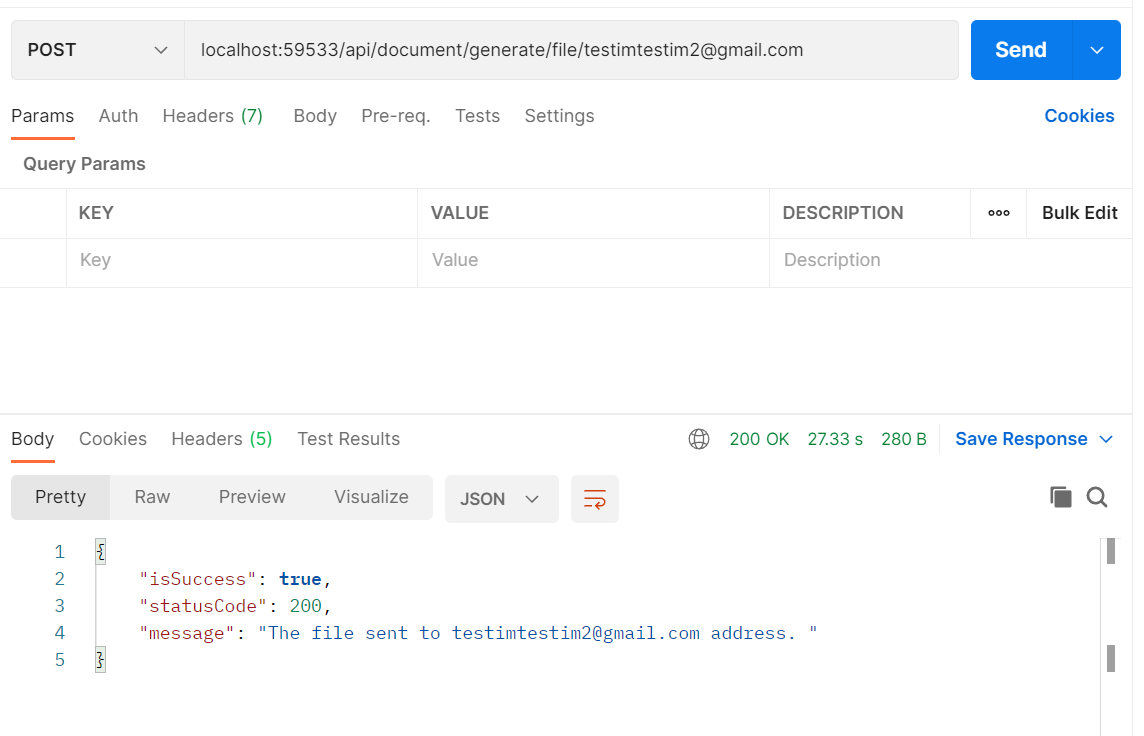
                message = $"The file sent to {email} address. "
            };
        }
    }
}
We are now in the testing phase. We will perform our tests on Postman. We will send a HTTP POST request to the path ' /api/document/generate/file/{email}'.
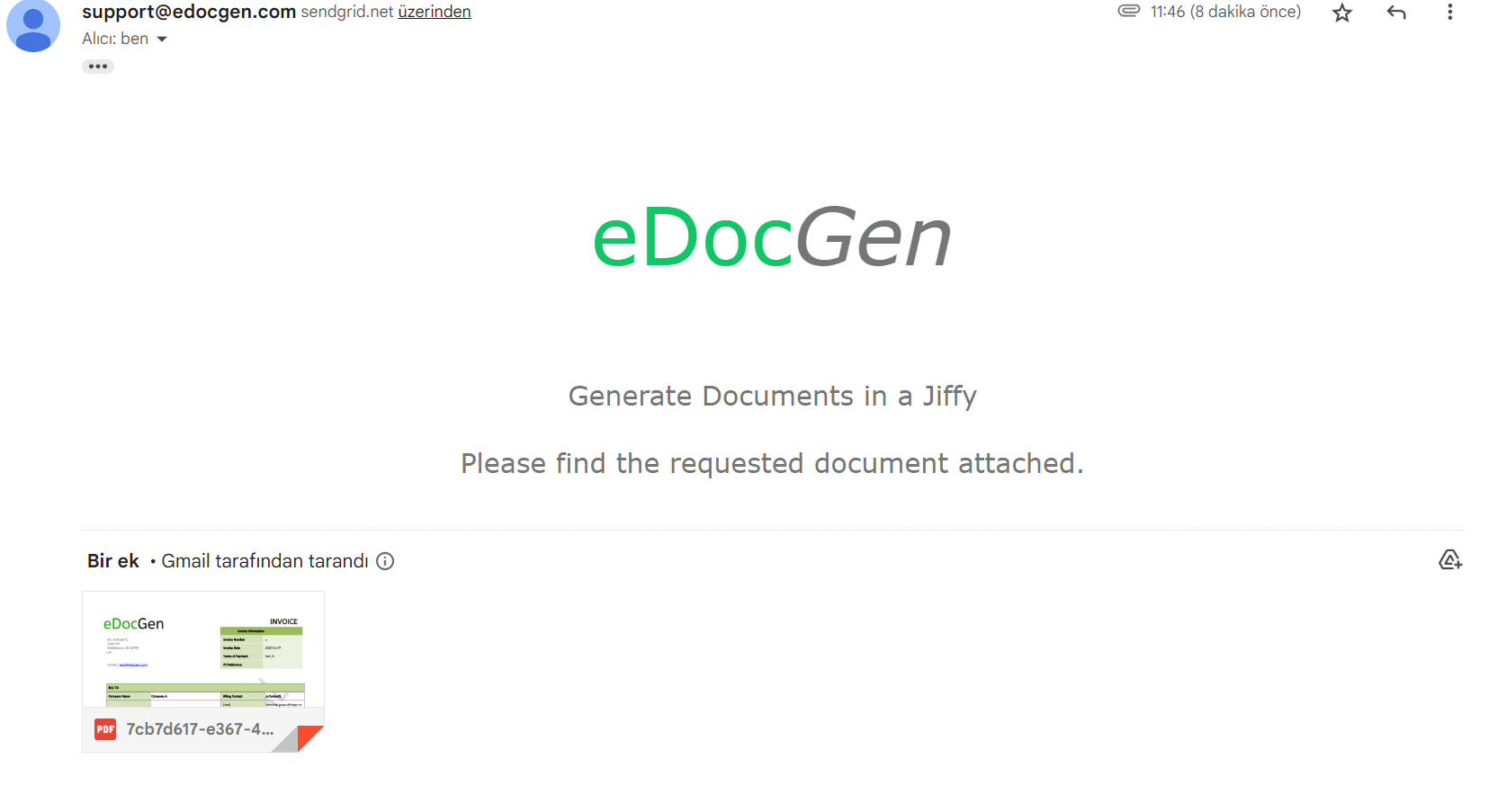
Now let's check our email address and open the generated file.
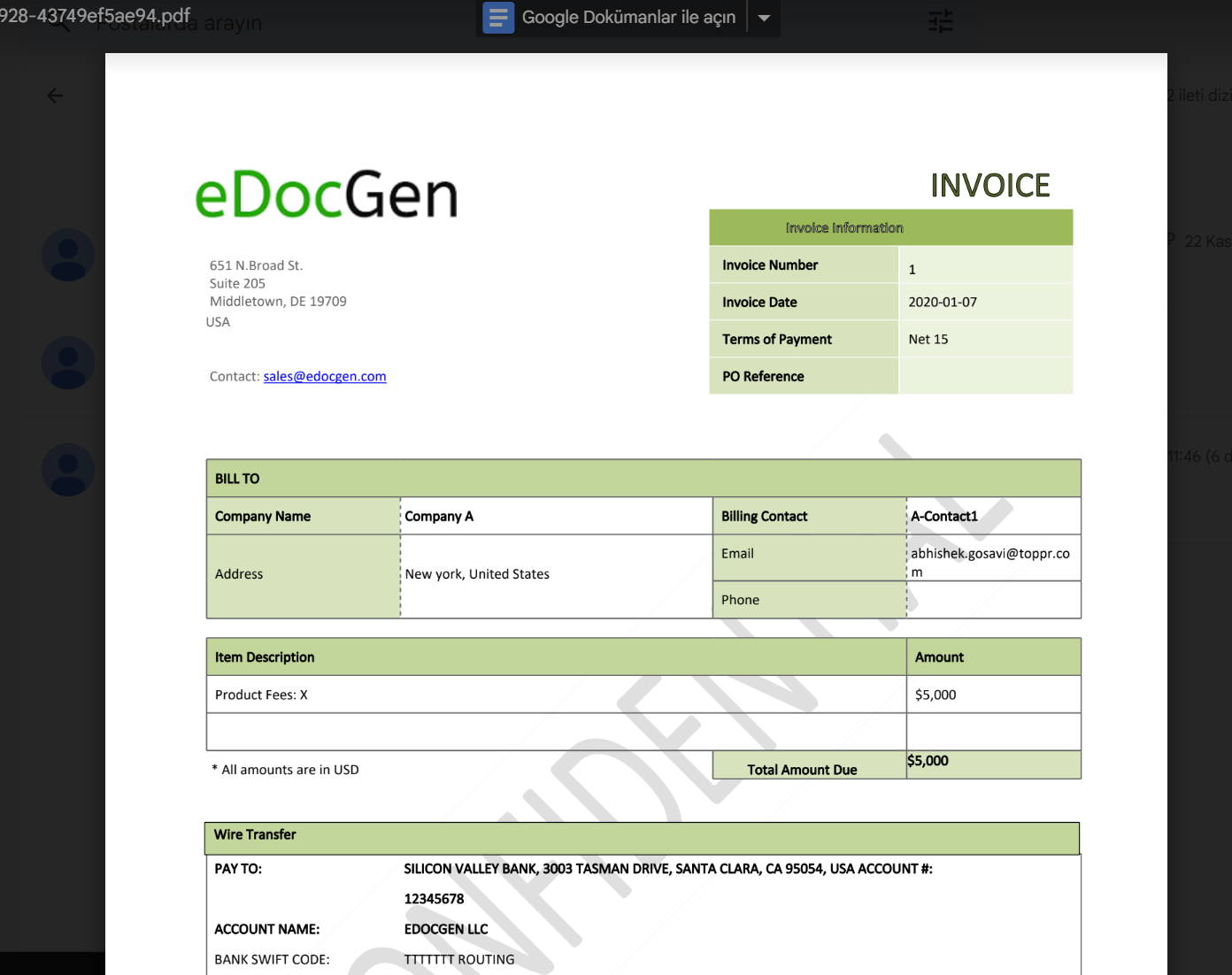
In this article, we mentioned how we get data from an MSSQL database on Azure in JSON format, populate a template with this data, and then generate it in pdf format. Finally, we talked about how to send the file we created in pdf format as an email.
We have come to the end of this article. Be sure to visit to discover many more services that EDocGen provides.
Yes. This example extracts data from an Azure SQL Server database using a native query, formats it as JSON, and sends it to EDocGen APIs. EDocGen then populates an existing invoice template to produce a PDF. The generated file can be emailed to a target address, so the full workflow can run from an ASP.NET Core application without manual document editing.
In the Azure portal, open your database, click 'Set firewall settings', and change public network access from Disable to Selected Networks. Under Firewall rules, add your client IPv4 address so that only your machine can reach the MSSQL database. Then click Save. Without this configuration, your application cannot connect to the Azure-hosted database when extracting data for document generation.
Yes. EDocGen can generate both fillable and standard PDFs, as well as Word documents, from data pulled from Azure SQL Server. You can use templates you have already created, so layouts do not need to be rebuilt for each output. EDocGen also supports batch processing, which lets you generate large numbers of documents from database records in a single run.
Yes. EDocGen provides examples for generating Word documents from JSON data and generating PDF and Word documents from Excel data. In each case, source data is mapped into a template and EDocGen outputs the finished file. The same template-based approach used for Azure SQL Server applies to these other data sources, so you can reuse the pattern across different systems.
Posted by admin
Creating Documents is universal truth across organizations. Every organization either big or small.
Posted by admin
If your organization is creating a large number of fillable PDF or read-only PDF documents from Excel.
Posted by admin
Generate PDF documents from existing templates and send them by email from .Net application.